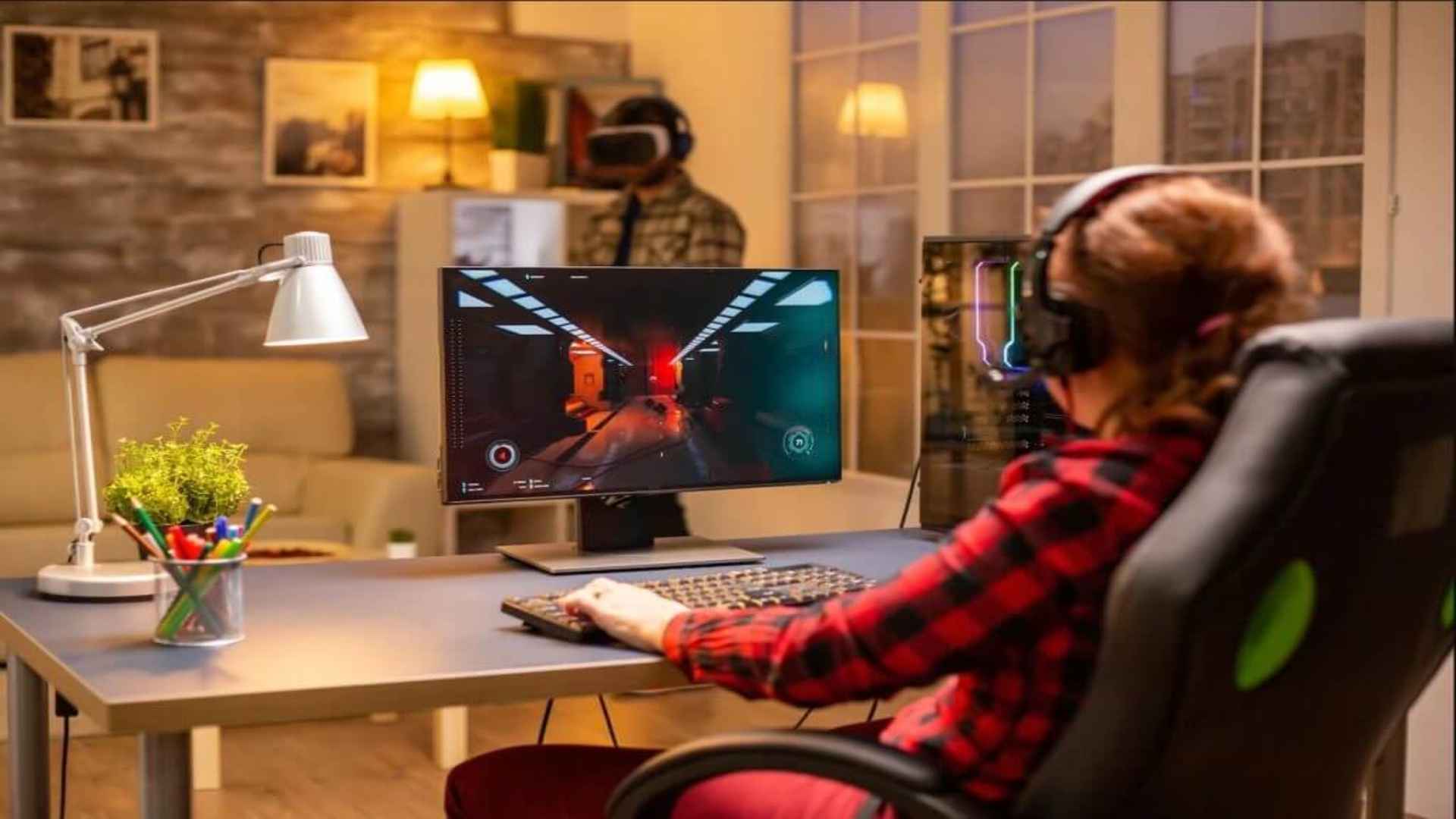
Experiencing sudden frame rate drops during gameplay can transform an immersive gaming session into a frustrating ordeal. Low frames per second, commonly referred to as low FPS, often stem from a combination of hardware limitations, misconfigured settings, and background software overhead. Identifying the underlying cause requires a systematic approach to troubleshooting both system components and software configurations.
Hardware Bottlenecks and Thermal Throttling
One primary reason for low frame rates is a hardware bottleneck, where either the CPU or GPU limits overall performance. When one component processes data slower than the other, the system struggles to render frames efficiently. Monitoring hardware usage during gameplay helps determine which component reaches full capacity first.
Thermal throttling also significantly impacts gaming performance by forcing hardware to reduce speed to prevent overheating. Accumulated dust inside the PC case or inadequate cooling solutions often lead to elevated temperatures during demanding tasks. Cleaning internal components and ensuring proper airflow can quickly resolve thermal issues.
Outdated Drivers and Software Conflicts
Graphics card manufacturers regularly release driver updates tailored to optimize performance for modern gaming titles. Running outdated display drivers can cause severe performance degradation and stability issues in newer releases. Installing the latest drivers ensures your graphics hardware operates with optimal efficiency and bug fixes.
Background applications running simultaneously can consume valuable CPU cycles and system memory. Programs such as web browsers, recording software, and heavy background downloads often compete with games for vital resources. Closing unnecessary background processes frees up system memory and processing capacity for smoother rendering.
In-Game Display and Graphics Configurations
In-game settings heavily dictate how much graphical workload your graphics card must process per frame. Demanding features like ray tracing, high-resolution textures, and complex shadow quality drastically reduce frame output on mid-range hardware. Lowering these intensive parameters provides an immediate boost to visual smoothness without sacrificing core gameplay.
Resolution scale and display modes also play crucial roles in overall stability and performance metrics. Running games in full-screen mode rather than windowed options typically allows the operating system to prioritize graphics resources directly to the active application. Adjusting render scaling slightly below native resolution can yield substantial frame rate improvements.
Operating System Optimizations
Modern operating systems include built-in features specifically designed to prioritize resources for gaming workloads. Enabling dedicated game mode features helps prevent background updates from interrupting active gaming sessions. Adjusting power management plans to high performance ensures hardware components receive constant power without power-saving delays.
Regular maintenance, such as updating system software and clearing temporary files, maintains long-term system stability. Ensuring your storage drives have adequate free space prevents performance slowdowns related to virtual memory usage. Taking these preventive steps creates a stable foundation for consistent frame rates across all your favorite titles.